
CBCT Segmentation
Per-tooth STLs, jaws, and the inferior alveolar nerve — automatic, on your own PC.
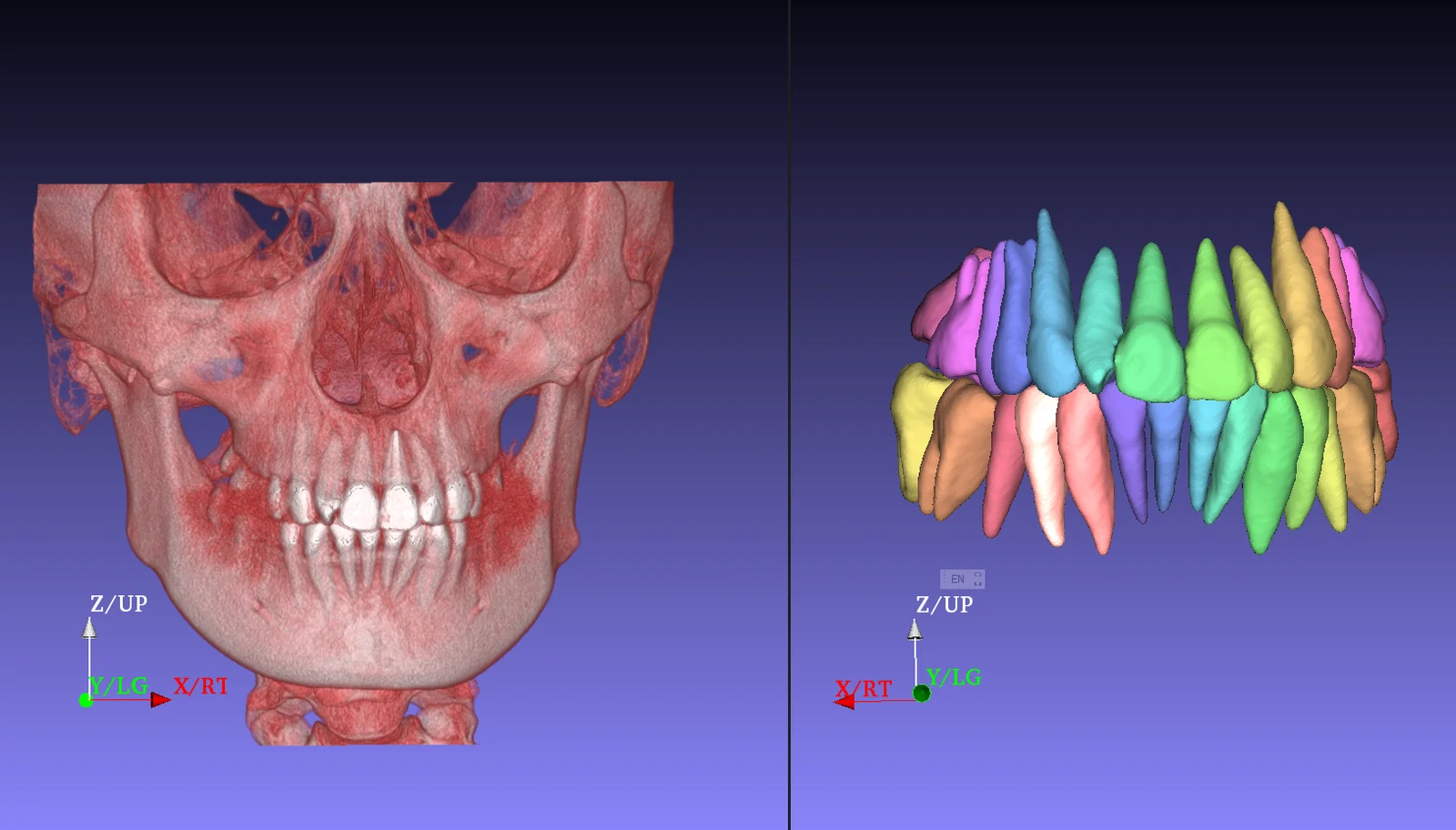
CBCT Segmentation turns a folder of DICOM slices into per-tooth STLs (US tooth numbering), maxilla and mandible meshes — with and without teeth — and the inferior alveolar nerve, in a single automatic pass. It runs inside the Cympha Agent Manager on the user's own Windows PC: CBCT data never leaves the machine, results land in the case folder, and the same subscription covers the tray-based workflow and the one-click button on every Cympha case page.
Highlights
What you get back
Every successful run drops a complete set of STL meshes into a `cympha_segmentation/` folder inside the case workspace on the user's PC. Nothing is auto-uploaded — the lab decides what to send back to the clinic and when.
- Per-tooth STL per detected tooth, named by US tooth number (1–32)
- Maxilla with teeth + maxilla bone-only
- Mandible with teeth + mandible bone-only
- Inferior alveolar nerve (left + right)
- Combined jaw + teeth mesh for quick visualisation
Two ways to start a run
Both workflows use the same engine and the same subscription. Pick whichever fits the case.
- Agent Manager tray: right-click the Cympha icon → "Segment CBCT…" → pick a local DICOM folder and an output folder. Useful when the lab is processing a case that isn't on Cympha yet.
- Cympha case page: open the case → click "Segment CBCT" on the case header. The web app sends a request, the user's paired Agent Manager picks it up within ~20 seconds, locates the case folder it already syncs, and runs the pipeline. The button on the case page shows "Queued…", then "Running on <machine name>…", then returns to idle when the STLs are ready locally.
Workflow — clinic-to-lab
The same case flows end-to-end through Cympha without ever uploading CBCT to the cloud.
- Clinic uploads the case (intra-oral scans, prescription) to Cympha; the CBCT DICOM is synced to the lab's PC by the Agent Manager.
- Designer opens the case in Cympha → clicks Segment CBCT — the Agent on their PC runs the pipeline locally and writes per-tooth STLs into the case folder.
- Designer imports the STLs into Implant Master / OrthoPlus / their preferred CAD tool, finishes the plan, and pushes the deliverables back through Cympha.
Privacy and concurrency
Compute stays on the user's machine, and one run-at-a-time enforcement keeps billing fair.
- CBCT data is read directly from the local DICOM folder. No image content is uploaded to Cympha at any point.
- Cympha holds only the job lifecycle (queued → running → finished) so the case page can show status.
- One concurrent segmentation per user across every paired computer. Trying to start a second one while a first is still running returns a clear "already running on <machine>" message instead of double-spending compute time.
Setup
Install once, segment anywhere.
- Install Cympha Agent Manager (free, available from the Cympha account page) and pair it from the in-app prompt.
- Subscribe to CBCT Segmentation on this site — the subscription is keyed to the Cympha user, not to a single machine.
- First run downloads the segmentation engine (~3 GB) into the agent's local cache automatically; subsequent runs reuse it.
Ready to subscribe?
Pick the tier that matches your monthly case volume.
See pricing