
A case begins as a folder of DICOM files and becomes a project. This step is short, but two of its decisions shape everything after it: which file you point at, and whether you let the AI engine start work immediately.
Before a project is open
GuideMia starts with almost nothing on the toolbar — New, Open, Language, Check update, Activate License and AudioGuide. The planning tools only appear once a project exists.
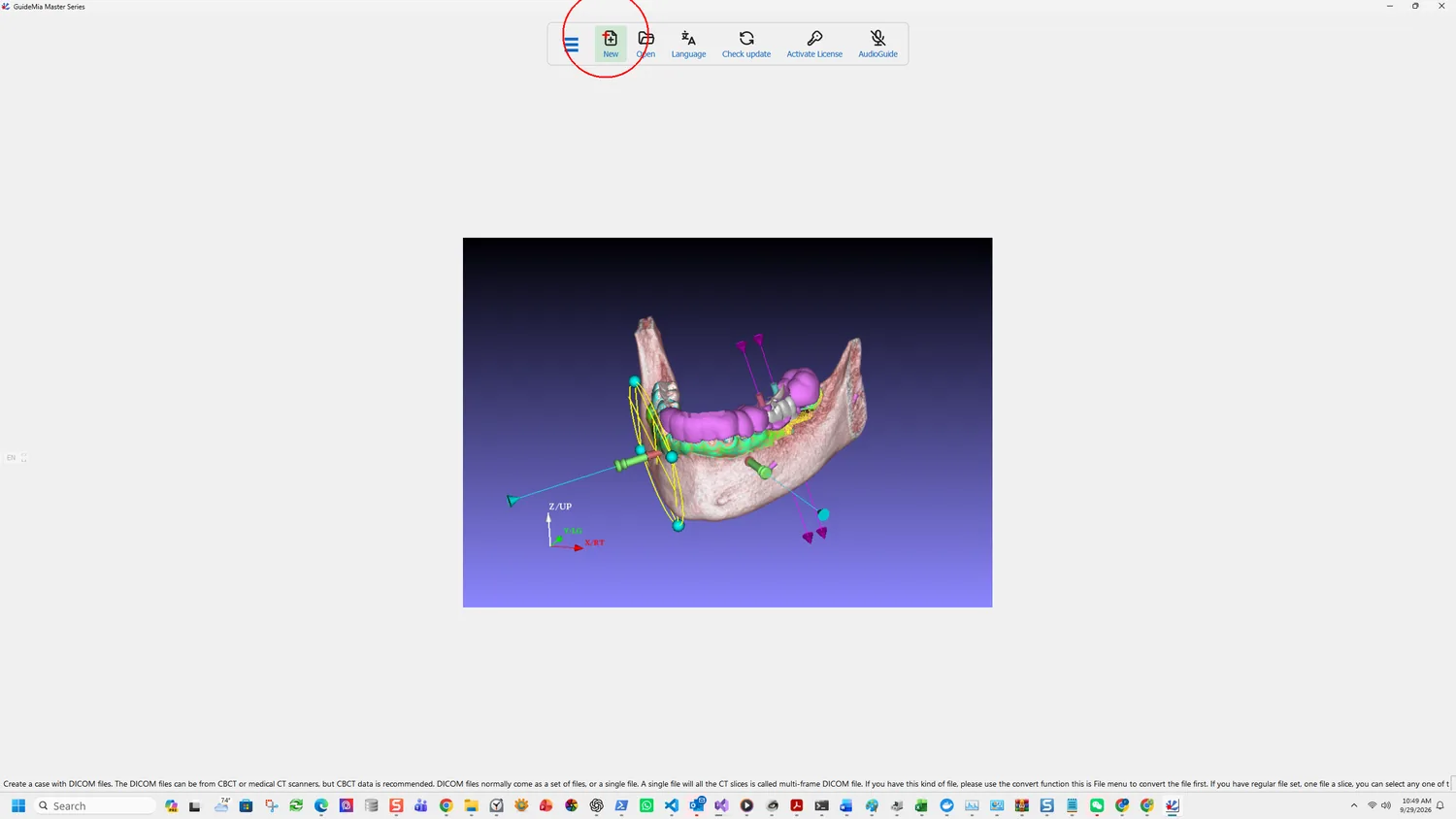
New creates a case from CT data. Open takes an existing project:
Open an existing project. It can be a project file or a package file, which can be saved using the function Save for Transfer.
Point at any one file of the set
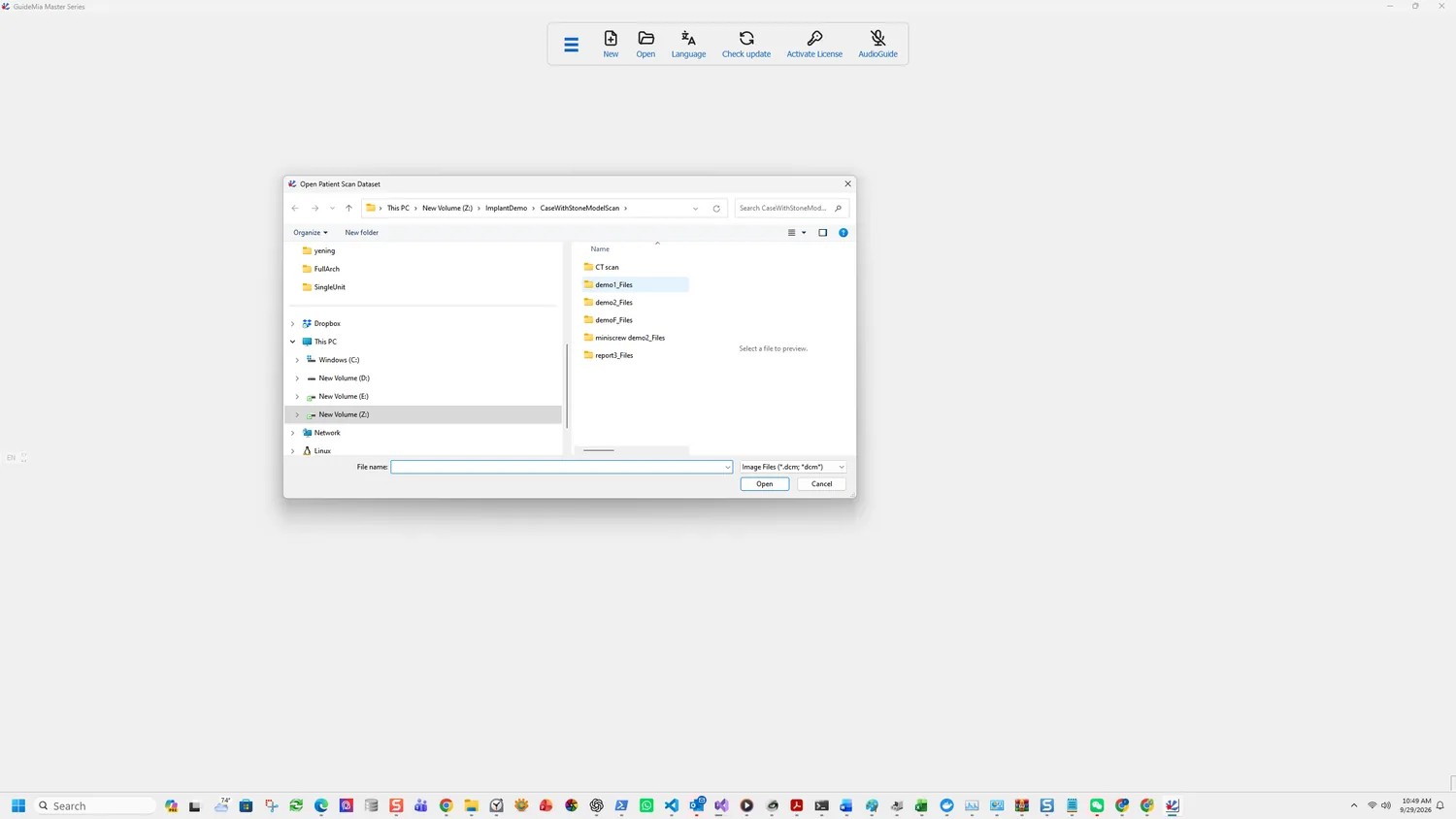
The instruction that saves the most time is this one:
If you have regular file set, one file a slice, you can select any one of the files. The system will open the entire dataset.
You do not select the folder, and you do not multi-select. One file is enough and the rest follow.
Three things about the data itself:
CBCT is preferred. The software accepts DICOM from CBCT or medical CT scanners, but CBCT is what it is designed around.
A multi-frame file needs converting first. A single file containing every slice is a multi-frame DICOM, and it has to go through the convert function in the File menu before it can be opened as a case.
Files without a .dcm extension are common. The dialog filters on
Image Files (*.dcm; *dcm), so a set saved without extensions looks like an
empty folder. Switch the filter to All Files and they appear — the files
are fine, the filter is hiding them.
One patient's scan should be alone in its folder, with a single CT dataset in it.
Decide about AI segmentation straight away
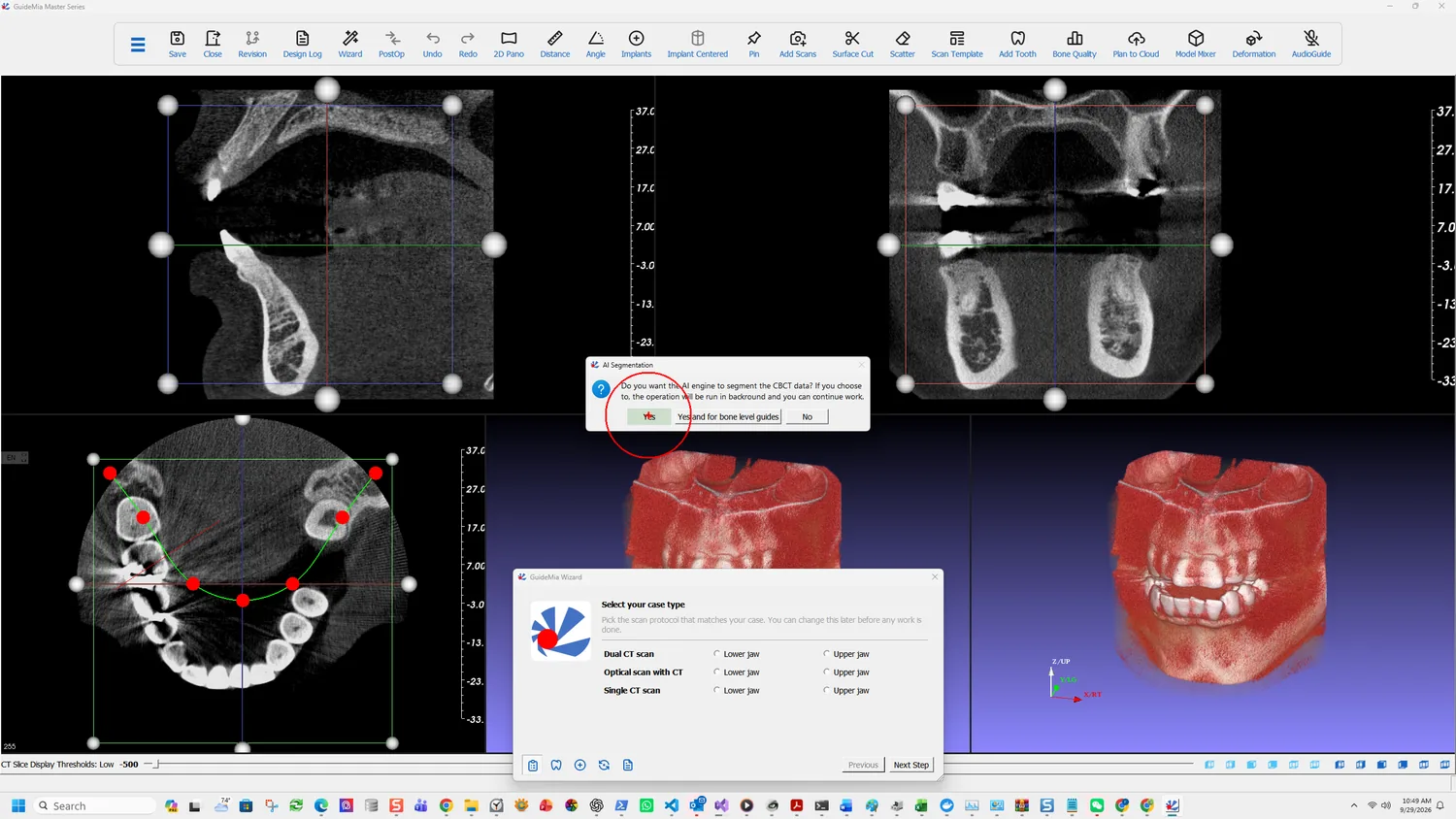
As soon as the volume loads, before you have chosen anything else:
Do you want the AI engine to segment the CBCT data? If you choose to, the operation will be run in backround [sic] and you can continue work.
Three answers, and they are not the same decision:
Yes segments the jaw — roots, bone and the nerve channels together. It runs in the background, so you can carry on while it works. Taking this makes the segmentation and nerve steps later in the Wizard into review rather than work.
Yes and for bone level guides does the same and prepares what a bone-level guide needs. Take it if the guide will seat on bone rather than on teeth; the extra work is done up front rather than discovered later.
No leaves everything manual. The Wizard's segmentation step then matters in full, and the nerve has to be traced by hand.
The prompt appears once, at this moment. Choosing No here does not lock you out — the Wizard's segmentation page carries its own AI Segmentation button — but it does mean the background work never started, so you wait for it later instead of while you were setting the case up.
What the Wizard asks next
Behind the prompt, the Wizard has already opened on Select your case type, offering Dual CT scan, Optical scan with CT and Single CT scan, each for the lower or upper jaw. That choice is the next step.
The full Load Case Data page in the workflow panel carries the routes this case does not take:
- Radiographic Guide CT or optical — for fully edentulous cases, where the guide represents the gum surface and possible tooth arrangement; and for partially edentulous cases where there is not enough natural tooth left to register a CBCT against a model scan.
- Denture design — loads a digital denture design, which can be registered against a radiographic guide or just the gingiva model. GuideMia can add abutment holes to it, or generate a prosthesis guide so the clinician can check occlusion and guide position before any drilling.
- Impression CT or optical — loads an impression scan. The model builder extracts its inner surface and turns it into a solid dental model.
Also on that page: Save Revision stores a treatment plan — the implants and their positions — and Switch to selected plan brings a saved one back as the working plan. Useful when a case needs two options presented side by side.